
Product & Service Training
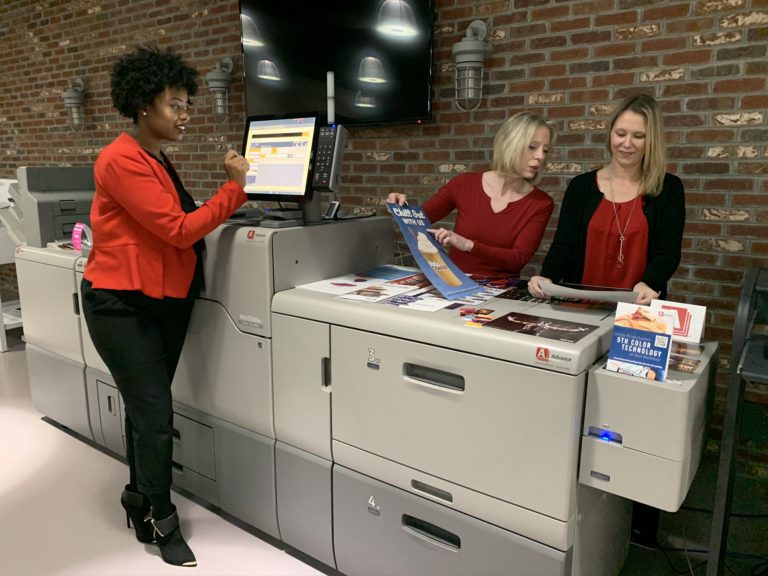
FlexTG is passionate about helping to eliminate the distractions that keep you from focusing on your mission by setting you up with the right technology and workflows to keep you moving forward. In order to ensure a successful and seamless adoption of your new technology, we provide training for anyone on your team for the lifetime of your contract!
Product & Service Training
FlexTG is passionate about helping to eliminate the distractions that keep you from focusing on your mission by setting you up with the right technology and workflows to keep you moving forward. In order to ensure a successful and seamless adoption of your new technology, we provide training for anyone on your team for the lifetime of your contract!

User Confidence through Training
Our training specialists will work to help your team to master the ins and outs of your new technology so you can work smarter. With thorough knowledge of your technology and workflows – and the confidence that comes with it – your team can work more efficiently, utilizing short-cuts and powerful security features to gain a competitive advantage in the marketplace.
Training, Throughout the Lifetime of Your Contract
But what happens if you have a new team member or you have a question about your technology? No problem. We offer training throughout the lifetime of your contract, so we are always just a call away if you need someone to talk you through a question or you want on-site training for new employees.
What Does Training Entail?
FlexTgs’s training can look and feel anyway that you’d like it to – we customize each of our training sessions to meet the unique needs of your organization. We are happy to come to your office and walk each department through their most common workflows, setup a remote training session for specific questions and even have been known to prepare custom how-to videos for you to reference for years to come! Anything you need, we are here to help.
Request Training
Click the button below to request training or to ask a question! We’d be happy to assist you.
Training Videos & Instructions
View FlexTG’s collection of custom-made instructional videos and documentation designed to help you make the most out of your FlexTG technology!
Print Devices
Every device and its configuration is unique. Should you have a question or would like assistance adjusting your tray paper settings, click the button below and one of FlexTG's expert trainers will reach out directly to answer your question or to schedule training. We look forward to hearing from you!
This video will walk you through how you can change the staples on your Canon copier. It will show you open the front door of the finisher and remove the staples cartridge from the cartridge carrier. It will walk you through how to remove the cartridge from the casing and insert the new cartridge into the casing until it clicks into position. You will see how to insert the staple unit back into the cartridge carrier and close the finisher door.
Click here to download instructions!
These instructions are relevant for the following equipment:
imageRUNNER ADVANCE DX C5870i, DX C5860i, DX C5850i, DX C5850i, DX C3835i, DX C3830i, DX C3826i, DX C5750i, DX C5740i, DX C5735i, DX C3730i, DX C3725i, C5560i III, C5535i III, DX C7780i, DX C7770i, DX C7765i, C7580i III, C7570i III, C7565i III
This video will walk you through step-by-step instructions that detail how to change the toner on your Canon copier when the machine indicates that a replacement is needed. It will show you where to open the front panel door of the copier to access the toner cartridges. The video will show how to remove the empty cartridge and how to properly replace the new cartridge into the copier.
Click here to download instructions!
These instructions are relevant for the following equipment:
imageRUNNER ADVANCE DX C5870i, DX C5860i, DX C5850i, DX C5850i, DX C3835i, DX C3830i, DX C3826i, DX C5750i, DX C5740i, DX C5735i, DX C3730i, DX C3725i, C5560i III, C5535i III, DX C7780i, DX C7770i, DX C7765i, C7580i III, C7570i III, C7565i III
This video will walk you through step-by-step instructions detailing how to change the waste toner cartridge on a Canon copier when the machine indicates replacement is needed. It will show you where to open the panel door on the front of the copier to access the waste cartridge. The video will show how to remove the empty waste cartridge and how to properly replace the new cartridge into the copier.
Click here to download instructions!
These instructions are relevant for the following equipment:
imageRUNNER ADVANCE DX C5870i, DX C5860i, DX C5850i, DX C5850i, DX C3835i, DX C3830i, DX C3826i, DX C5750i, DX C5740i, DX C5735i, DX C3730i, DX C3725i, C5560i III, C5535i III, DX C7780i, DX C7770i, DX C7765i, C7580i III, C7570i III, C7565i III
This video will walk you through step-by-step instructions detailing how to print in a Secure Print mode through the print driver to hold the print job on the device. It will show you the options to select in printer properties to change the Output method and where to input the User Name and PIN information. The video will walk you through the steps at the machine on how to release the print job by selecting the Secure Print icon on the panel.
Click here to download instructions!
These instructions are relevant for the following equipment:
Canon 4025/4035/4045/4051, Canon 4225/4235/4245/4251, Canon 4525/4535/4545/4551, Canon 5055/5065/5075, Canon 6065/6075/8085/8095, Canon 6255/6265/6275/8205 /8285/8295, Canon 6555/6555/6575/8505/8585/8595I, Canon C2020/C2030, Canon C2225/C2230, Canon C33301/C33251 Canon C 3501F/C 3 50P/C 2501F, Canon C352 5I/C35301, Canon C3551F/2551F, Canon C3561F/C2561F, Canon C35611/C356III/C25611/C256111, Canon C5030/C5035/C5045/C5051, Canon C4080/C4580/C5185, Canon C4080/C4580/C5185, Canon C 523 5/C 5240/C 5250/C 5255, Canon C5535/C 5540/C 5550/C 5560, Canon C7565/C7570/C7580, Canon C7055/C7065/C9065/C9075, Canon C7260/C7270/C9270/C9280, Canon DX 4751i /47451 47351/ 472 51, Canon DX 8705/8795/8786/6780/6765/6755, Canon DX C3571f/C2571fCanon DX C37301/C37251, Canon DX C57601/C57501/C57401/C5735, Canon DX C77801/C77701/C77651, Canon VP 110/VP 120/VP 13 5/11PBOX
This video will walk you through step-by-step instructions that detail how to turn on Fax Forwarding. This feature allows faxes to be received via folder or email whether working onsite or remotely while also minimizing the paper output on your copier.
Start by logging into the machine via the IP address, select Settings/Registration then select Receive/Forward and Forwarding Settings. Select ‘Forward without Conditions’ and confirm ‘Enable this Forwarding Condition’ is checked. Select Destination from Address List and the video will walk you through confirming the forwarding destination is turned on.
Click here to download instructions!
These instructions are relevant for the following equipment:
Canon 4025/4035/4045/4051, Canon 4225/4235/4245/4251, Canon 4525/4535/4545/4551, Canon 5055/5065/5075, Canon 6065/6075/8085/8095, Canon 6255/6265/6275/8205 /8285/8295, Canon 6555/6555/6575/8505/8585/8595I, Canon C2020/C2030, Canon C2225/C2230, Canon C33301/C33251 Canon C 3501F/C 3 50P/C 2501F, Canon C352 5I/C35301, Canon C3551F/2551F, Canon C3561F/C2561F, Canon C35611/C356III/C25611/C256111, Canon C5030/C5035/C5045/C5051, Canon C4080/C4580/C5185, Canon C4080/C4580/C5185, Canon C 523 5/C 5240/C 5250/C 5255, Canon C5535/C 5540/C 5550/C 5560, Canon C7565/C7570/C7580, Canon C7055/C7065/C9065/C9075, Canon C7260/C7270/C9270/C9280, Canon DX 4751i /47451 47351/ 472 51, Canon DX 8705/8795/8786/6780/6765/6755, Canon DX C3571f/C2571fCanon DX C37301/C37251, Canon DX C57601/C57501/C57401/C5735, Canon DX C77801/C77701/C77651, Canon VP 110/VP 120/VP 13 5/11PBOX
Adding new team members or contacts to the Address Book for the scan to email function can easily be done by following the steps in this video. This video will walk you through step-by-step instructions detailing how to access the Scan and Send screen on the Main display panel of your Canon model machine and manually register an email address as a New Destination into the Address Book for scanning.
Click here to download instructions!
These instructions are relevant for the following equipment:
Canon 4025/4035/4045/4051, Canon 4225/4235/4245/4251, Canon 4525/4535/4545/4551, Canon 5055/5065/5075, Canon 6065/6075/8085/8095, Canon 6255/6265/6275/8205 /8285/8295, Canon 6555/6555/6575/8505/8585/8595I, Canon C2020/C2030, Canon C2225/C2230, Canon C33301/C33251 Canon C 3501F/C 3 50P/C 2501F, Canon C352 5I/C35301, Canon C3551F/2551F, Canon C3561F/C2561F, Canon C35611/C356III/C25611/C256111, Canon C5030/C5035/C5045/C5051, Canon C4080/C4580/C5185, Canon C4080/C4580/C5185, Canon C 523 5/C 5240/C 5250/C 5255, Canon C5535/C 5540/C 5550/C 5560, Canon C7565/C7570/C7580, Canon C7055/C7065/C9065/C9075, Canon C7260/C7270/C9270/C9280, Canon DX 4751i /47451 47351/ 472 51, Canon DX 8705/8795/8786/6780/6765/6755, Canon DX C3571f/C2571fCanon DX C37301/C37251, Canon DX C57601/C57501/C57401/C5735, Canon DX C77801/C77701/C77651, Canon VP 110/VP 120/VP 13 5/11PBOX
Turning on Department ID’s (also referred to as "Pin #'s, passwords or user codes) for your Canon printer provides accountability and tracks usage on an individual or departmental basis for reporting purposes. This video is intended for machine administrators so you may need to contact an administrator to enable this feature. You will first need to enable this feature in the Print Driver to create the pop-up box that requires the Dept. ID number every time a user prints. This video will walk you through step-by-step instructions detailing how to enable the Department ID feature in the driver settings of the machine. This video will show you how to access Devices on your computer and go into Printer Properties on the machine and selecting Device Settings to click on the Department ID management option. This feature allows for the pop-up that requires the Dept. ID number to be entered in order to print from your workstation.
Turning on Department ID’s for your Canon printer provides accountability and tracks usage on an individual or departmental basis for reporting purposes. This video will walk you through step-by-step instructions detailing how to log into the Web Portal of the machine via the IP address to turn on the Department ID Authentication. It will walk you through how to register a Department ID number in the User Management section of the Web Portal. You will see how to select the functions you want restricted for all the machine features. The video will guide you through how to print a report for the Department ID totals.
This video will provide an overview of the Canon imagePROGRAF TZ 30000. We will walk you through the copy and scanning process of feeding drawings through the scanner at the device from the scan station panel. The video walks you through the print driver settings for plotting drawings and sending them to the device. You will see the different output options for drawings in the top tray and bottom catch tray. The video walks you through how to change the paper rolls and ink cartridges.
Turning on Department ID’s for your Canon copier provides accountability and tracks usage on an individual or departmental basis for reporting purposes. This video will walk you through step-by-step instructions detailing how to log into the copier in Settings & Registration to turn on the Department ID Management. It will walk you through how to register a Department ID number in the User Management section of the machine. You will see how to select the functions you want restricted for all the machine features. The video will guide you through how to print a report for the Department ID totals.
This video provides step-by-step instructions detailing how to change some of the common default settings on your Ricoh/Savin Print Driver, such as1-sided printing and a Black & White print mode. It will walk you through selecting your Start Windows Icon, the Settings gear, Devices, Printers & Scanners, select your printer, select Manage, select Printing Preferences then changing the desired settings and select the Apply tab and OK.
Click here to download instructions!
These instructions are relevant for the following equipment:
Ricoh IM C300, Savin IM C300, Ricoh IM 350F, Savin IM 350F, Ricoh IM C400F, Savin IM C400F, Ricoh IM C2000, Savin IM C2000, Ricoh IM C2500, Savin IM C2500, Ricoh IM 430F, Savin IM 430F, Ricoh IM 550F, Savin IM 550F, Ricoh IM 600SRF, Savin IM 600SRF, Ricoh IM C3000, Savin IM C3000, Ricoh IM C3500, Savin IM C3500, Ricoh IM C4500, Savin IM C4500, Ricoh IM C6000, Savin IM C6000
This video explains how to save documents on the copier that are commonly used or recalled on a frequent basis. We will walk you through step-by-step instructions detailing how to store a document on the copier in the Document Server.
Click here to download instructions!
These instructions are relevant for the following equipment:
This video will walk you through all the basic Scan features of your Ricoh/Savin copier.
These instructions are relevant for the following equipment:
Savin IM C300, Savin IM 350F, Savin IM C400F, Savin IM C2000, Savin IM C2500, Savin IM 430F, Savin IM 550F, Savin IM 600SRF, Savin IM C3000, Savin IM C3500, Savin IM C4500, Savin IM C6000, Ricoh IM C300, Ricoh IM 350F, Ricoh IM C400F, Ricoh IM C2000, Ricoh IM C2500, Ricoh IM 430F, Ricoh IM 550F, Ricoh IM 600SRF, Ricoh IM C3000, Ricoh IM C3500, Ricoh IM C4500, Ricoh IM C6000
This video will walk you through all the basic Copy features of your Ricoh/Savin copier. It will walk you through the Paper Tray Settings, the Reduce & Enlarge Feature, the 2-sided options and the finishing option for Sort, Staple and Hole Punch.
These instructions are relevant for the following equipment:
Savin IM C300, Savin IM 350F, Savin IM C400F, Savin IM C2000, Savin IM C2500, Savin IM 430F, Savin IM 550F, Savin IM 600SRF, Savin IM C3000, Savin IM C3500, Savin IM C4500, Savin IM C6000, Ricoh IM C300, Ricoh IM 350F, Ricoh IM C400F, Ricoh IM C2000, Ricoh IM C2500, Ricoh IM 430F, Ricoh IM 550F, Ricoh IM 600SRF, Ricoh IM C3000, Ricoh IM C3500, Ricoh IM C4500, Ricoh IM C6000
This video will walk you through common printing features on your Ricoh/Savin IM Series machine. Review step-by-step instructions detailing how to access the Printer icon on the Ricoh/Savin Home screen to Reset or cancel a print job. It will also walk you through how to access and release a Lock or Hold print by selecting the Print Jobs tab, select you your name, select the print and hit Print. It will show you how to enter the password for the Lock Print option.
These instructions are relevant for the following equipment:
Savin IM C300, Ricoh IM C300, Savin IM 350F, Ricoh IM 350F, Savin IM C400F, Ricoh IM C400F, Savin IM C2000, Ricoh IM C2000, Savin IM C2500, Ricoh IM C2500, Savin IM 430F, Ricoh IM 430F, Savin IM 550F, Ricoh IM 550F, Savin IM 600SRF, Ricoh IM 600SRF, Savin IM C3000, Ricoh IM C3000, Savin IM C3500, Ricoh IM C3500, Savin IM C4500, Ricoh IM C4500, Savin IM C6000, Ricoh IM C6000
This video will walk you through all the basic Faxing features of your Ricoh/Savin copier.
These instructions are relevant for the following equipment:
Savin IM C300, Ricoh IM C300, Savin IM 350F, Ricoh IM 350F, Savin IM C400F, Ricoh IM C400F, Savin IM C2000, Ricoh IM C2000, Savin IM C2500, Ricoh IM C2500, Savin IM 430F, Ricoh IM 430F, Savin IM 550F, Ricoh IM 550F, Savin IM 600SRF, Ricoh IM 600SRF, Savin IM C3000, Ricoh IM C3000, Savin IM C3500, Ricoh IM C3500, Savin IM C4500, Ricoh IM C4500, Savin IM C6000, Ricoh IM C6000
This video will walk you through step-by-step instructions that detail how to program specific icons to display on your Ricoh/Savin machine’s Home screen.
These instructions are relevant for the following equipment:
Ricoh IM C300, Savin IM C300, Ricoh IM 350F, Savin IM 350F, Ricoh IM C400F, Savin IM C400F, Ricoh IM C2000, Savin IM C2000, Ricoh IM C2500, Savin IM C2500, Ricoh IM 430F, Savin IM 430F, Ricoh IM 550F, Savin IM 550F, Ricoh IM 600SRF, Savin IM 600SRF, Ricoh IM C3000, Savin IM C3000, Ricoh IM C3500, Savin IM C3500, Ricoh IM C4500, Savin IM C4500, Ricoh IM C6000, Savin IM C6000
This video will walk you through step-by-step instructions detailing how to change the scan setting for Color and Resolution in order to achieve the best results possible.
Click here to download instructions!
These instructions are relevant for the following equipment:
Savin IM C300, Ricoh IM C300, Savin IM 350F, Ricoh IM 350F, Savin IM C400F, Ricoh IM C400F, Savin IM C2000, Ricoh IM C2000, Savin IM C2500, Ricoh IM C2500, Savin IM 430F, Ricoh IM 430F, Savin IM 550F, Ricoh IM 550F, Savin IM 600SRF, Ricoh IM 600SRF, Savin IM C3000, Ricoh IM C3000, Savin IM C3500, Ricoh IM C3500, Savin IM C4500, Ricoh IM C4500, Savin IM C6000, Ricoh IM C6000
This video will walk you through step-by-step instructions detailing how to access the Address Book from the Home screen to manage the Email, Folder and Fax destinations. We will show you an example on how to register a new destination into the Address Book, how to delete a destination and how to create a Group from pre-registered destinations.
These instructions are relevant for the following equipment:
Ricoh IM C300, Savin IM C300, Ricoh IM 350F, Savin IM 350F, Ricoh IM C400F, Savin IM C400F, Ricoh IM C2000, Savin IM C2000, Ricoh IM C2500, Savin IM C2500, Ricoh IM 430F, Savin IM 430F, Ricoh IM 550F, Savin IM 550F, Ricoh IM 600SRF, Savin IM 600SRF, Ricoh IM C3000, Savin IM C3000, Ricoh IM C3500, Savin IM C3500, Ricoh IM C4500, Savin IM C4500, Ricoh IM C6000, Savin IM C6000
Every device and its configuration is unique. Should you have a question or would like assistance adjusting your tray paper settings, click the button below and one of FlexTG’s expert trainers will reach out directly to answer your question or to schedule training. We look forward to hearing from you!
This video will walk you through step-by-step instructions detailing how to access the Scanner Classic icon from the Home screen and manually add an email address to program on to the scan screen. The video will show how to select the Manual entry tab to enter an email, select the Prog.Dest. tab to program the email on to the Scanner Classic screen.
Click here to download instructions!
These instructions are relevant for the following equipment: Savin/Ricoh
Ricoh MP 2501, Savin MP 2501, Ricoh MP 2352, Savin MP 2352, Ricoh MP 2852, Savin MP 2852, Ricoh MP 3352, Savin MP 3352, Ricoh MP 2851, Savin MP 2851, Ricoh MP 2852, Savin MP 2852, Ricoh MP 3053, Savin MP 3053, Ricoh MP 3054, Savin MP 3054, Ricoh MP 301, Savin MP 301, Ricoh MP 2554, Savin MP 2554, Ricoh MP C3002, Savin MP C3002, Ricoh MP 3554, Savin MP 3554, Ricoh MP 6001, Savin MP 6001, Ricoh MP 6002, Savin MP 60002, Ricoh MP C6003, Savin MP C6003, Ricoh MP C5503, Savin MP C5503, Ricoh MP C4503, Savin MP C4503, Ricoh MP C3503, Savin MP C3503, Ricoh MP C3003, Savin MP C3003, Ricoh MP 7001, Savin MP 7001, Ricoh MP 9001, Savin MP 9001, Ricoh MP 9002, Savin MP 9002, Ricoh MP 7502, Savin MP 7502, Ricoh MP 6500, Savin MP 6500, Ricoh MP 7500, Savin MP 7500, Ricoh MP 5500, Savin MP5500, Ricoh MP C4502, Savin MP C4502, Ricoh MP C5502, Savin MP C5502, Ricoh MP C306, Savin MP C306, Ricoh MP C307, Savin MP C307, Ricoh MP 305, Savin MP 305, Ricoh MP C401, Savin MP C401, Ricoh MP C407, Savin MP C407, Ricoh MP C501, Savin MP C501, Ricoh MP 601, Savin MP 601, Ricoh MP 2555, Savin MP 2555, Ricoh MP 3055, Savin MP 3055, Ricoh MP 3555, Savin MP 3555, Ricoh MP 4055, Savin MP 4055, Ricoh MP 5055, Savin MP 5055, Ricoh MP 6055, Savin MP 6055, Ricoh MP 6503, Savin MP 6503, Ricoh MP 6054, Savin MP 6054, Ricoh MP 7503, Savin MP 7503, Ricoh MP 9003, Savin MP 9003, Ricoh MP C6503, Savin MP C6503, Ricoh MP C8003, Savin MP C8003, Ricoh MP 2000, Savin MP 2000, Ricoh MP C2004, Savin MP C2004, Ricoh MP C2504, Savin MP C2504, Ricoh MP 2510, Savin MP 2510, Ricoh MP 2550, Savin MP 2550, Ricoh MP 2554, Savin MP 2554, Ricoh MP 2555, Savin MP 2555, Ricoh MP C3004, Savin MP C3004, Ricoh MP 7503, Savin MP 7503, Ricoh MP C4504, Savin MP C4504, Ricoh MP C6004, Savin MP C6004, Ricoh MP C3504, Savin MP C3504, Ricoh IM C300, Savin IM C300, Ricoh IM 350F, Savin IM 350F, Ricoh IM C400F, Savin IM C400F, Ricoh IM C2000, Savin IM C2000, Ricoh IM C2500, Savin IM C2500, Ricoh IM 430F, Savin IM 430F, Ricoh IM 550F, Savin IM 550F, Ricoh IM 600SRF, Savin IM 600SRF, Ricoh IM C3000, Savin IM C3000, Ricoh IM C3500, Savin IM C3500, Ricoh IM C4500, Savin IM C4500, Ricoh IM C6000, Savin IM C6000
Check out our quick video to learn how to properly clean the Smart Operation Panel on your Ricoh or Savin multifunctional printer. We will review which cleaning products are recommended for use as well as showcase proper cleaning procedure to ensure you are properly sterilizing the machine without damage. Please visit us at www.flextg.com/baltimore/training for additional training resources or to ask a question!
These instructions are relevant for the following equipment:
Ricoh IM C300, Savin IM C300, Ricoh IM 350F, Savin IM 350F, Ricoh IM C400F, Savin IM C400F, Ricoh IM C2000, Savin IM C2000, Ricoh IM C2500, Savin IM C2500, Ricoh IM 430F, Savin IM 430F, Ricoh IM 550F, Savin IM 550F, Ricoh IM 600SRF, Savin IM 600SRF, Ricoh IM C3000, Savin IM C3000, Ricoh IM C3500, Savin IM C3500, Ricoh IM C4500, Savin IM C4500, Ricoh IM C6000, Savin IM C6000
This video will walk you through step-by-step instructions that detail how to change the toner on a Ricoh/Savin copier when the machine indicates that a replacement is needed. It will show you where to open the front panel door of the copier to access the toner cartridges. The video will show how to remove the empty cartridge and how to properly replace the new cartridge into the copier.
These instructions are relevant for the following equipment:
Ricoh IM C2000, Savin IM C2000, Ricoh IM C2500, Savin IM C2500, Ricoh IM C3000, Savin IM C3000, Ricoh IM C3500, Savin IM C3500, Ricoh IM C4500, Savin IM C4500, Ricoh IM C6000, Savin IM C6000
This video will walk you through step-by-step instructions detailing how to change the waste toner cartridge on a Ricoh/Savin copier when the machine indicates replacement is needed. It will show you where to open the panel door on the front of the copier to access the waste cartridge. The video will show how to remove the empty waste cartridge and how to properly replace the new cartridge into the copier.
Click here to download instructions!
These instructions are relevant for the following equipment:
Ricoh IM C300, Savin IM C300, Ricoh IM C400F, Savin IM C400F, Ricoh IM C2000, Savin IM C2000, Ricoh IM C2500, Savin IM C2500, Ricoh IM C3000, Savin IM C3000, Ricoh IM C3500, Savin IM C3500, Ricoh IM C4500, Savin IM C4500, Ricoh IM C6000, Savin IM C6000
This video will walk you through step-by-step instructions detailing how to change the staple cartridge on a Ricoh/Savin copier when the machine indicates replacement is needed.
These instructions are relevant for the following equipment:
Ricoh IM C2000, Savin IM C2000, Ricoh IM C2500, Savin IM C2500, Ricoh IM C3000, Savin IM C3000, Ricoh IM C3500, Savin IM C3500, Ricoh IM C4500, Savin IM C4500, Ricoh IM C6000, Savin IM C6000
This video provides step-by-step instructions detailing how to change your Job Type print setting from a normal print mode to either a Lock or Hold print mode. This feature will allow you to secure your documents on the machine without them printing automatically until you go to release them. The Hold Print mode does not require a password to send or release a print job at the device. The Lock Print mode requires a numeric password to send and to release a print job at the device. Once the Lock or Hold print job is released at the device the job is cleared from the machine.
Click here to download instructions!
These instructions are relevant for the following equipment:
Ricoh IM C300, Savin IM C300, Ricoh IM 350F, Savin IM 350F, Ricoh IM C400F, Savin IM C400F, Ricoh IM C2000, Savin IM C2000, Ricoh IM C2500, Savin IM C2500, Ricoh IM 430F, Savin IM 430F, Ricoh IM 550F, Savin IM 550F, Ricoh IM 600SRF, Savin IM 600SRF, Ricoh IM C3000, Savin IM C3000, Ricoh IM C3500, Savin IM C3500, Ricoh IM C4500, Savin IM C4500, Ricoh IM C6000, Savin IM C6000
We will walk you through step-by-step instructions detailing how to turn on Fax Forwarding. Simply select the Settings icon, Machine Features and Fax Settings to turn this feature on. We will walk you through your various options, such as selecting whether or not you’d like faxes to print.
Click here to download instructions!
These instructions are relevant for the following equipment:
Savin IM C300, Ricoh IM C300, Savin IM 350F, Ricoh IM 350F, Savin IM C400F, Ricoh IM C400F, Savin IM C2000, Ricoh IM C2000, Savin IM C2500, Ricoh IM C2500, Savin IM 430F, Ricoh IM 430F, Savin IM 550F, Ricoh IM 550F, Savin IM 600SRF, Ricoh IM 600SRF, Savin IM C3000, Ricoh IM C3000, Savin IM C3500, Ricoh IM C3500, Savin IM C4500, Ricoh IM C4500, Savin IM C6000, Ricoh IM C6000
This video will walk you through step-by-step instructions detailing how to change the scan setting for Color and Resolution in order to achieve the best results possible.
Click here to download instructions!
These instructions are relevant for the following equipment:
Savin IM C300, Ricoh IM C300, Savin IM 350F, Ricoh IM 350F, Savin IM C400F, Ricoh IM C400F, Savin IM C2000, Ricoh IM C2000, Savin IM C2500, Ricoh IM C2500, Savin IM 430F, Ricoh IM 430F, Savin IM 550F, Ricoh IM 550F, Savin IM 600SRF, Ricoh IM 600SRF, Savin IM C3000, Ricoh IM C3000, Savin IM C3500, Ricoh IM C3500, Savin IM C4500, Ricoh IM C4500, Savin IM C6000, Ricoh IM C6000
This documentation will provide step-by-step instructions for envelope printing on your Ricoh/Savin device.
Click here to download instructions!
These instructions are relevant for the following equipment:
Ricoh IM C300, Savin IM C300, Ricoh IM 350F, Savin IM 350F, Ricoh IM C400F, Savin IM C400F, Ricoh IM C2000, Savin IM C2000, Ricoh IM C2500, Savin IM C2500, Ricoh IM 430F, Savin IM 430F, Ricoh IM 550F, Savin IM 550F, Ricoh IM 600SRF, Savin IM 600SRF, Ricoh IM C3000, Savin IM C3000, Ricoh IM C3500, Savin IM C3500, Ricoh IM C4500, Savin IM C4500, Ricoh IM C6000, Savin IM C6000
We will walk you through step-by-step instructions detailing how to change the default your Savin Print Driver to a Black & White setting.
This video will walk you through step-by-step on how to access the Scanner Classic icon from the Home screen and manually add an email address to program on to the scan screen. The video will show how to select the Manual entry tab to enter an email, select the Prog.Dest. tab to program the email on to the Scanner Classic screen.
Click here to download instructions!
These instructions are relevant for the following equipment:
Ricoh IM C300, Savin IM C300, Ricoh IM 350F, Savin IM 350F, Ricoh IM C400F, Savin IM C400F, Ricoh IM C2000, Savin IM C2000, Ricoh IM C2500, Savin IM C2500, Ricoh IM 430F, Savin IM 430F, Ricoh IM 550F, Savin IM 550F, Ricoh IM 600SRF, Savin IM 600SRF, Ricoh IM C3000, Savin IM C3000, Ricoh IM C3500, Savin IM C3500, Ricoh IM C4500, Savin IM C4500, Ricoh IM C6000, Savin IM C6000
We will walk you through step-by-step instructions detailing how to change the default settings on the copier to sort copy jobs as a collated set. From the copy screen you will be shown how to select the “Sort” tab so it is highlighted – select the “Recall/Program/Change Program” tab – select the “Program as Default” tab – The “Program” tab and confirm the setting as a default.
Click here to download instructions!
These instructions are relevant for the following equipment:
Ricoh IM C300, Savin IM C300, Ricoh IM 350F, Savin IM 350F, Ricoh IM C400F, Savin IM C400F, Ricoh IM C2000, Savin IM C2000, Ricoh IM C2500, Savin IM C2500, Ricoh IM 430F, Savin IM 430F, Ricoh IM 550F, Savin IM 550F, Ricoh IM 600SRF, Savin IM 600SRF, Ricoh IM C3000, Savin IM C3000, Ricoh IM C3500, Savin IM C3500, Ricoh IM C4500, Savin IM C4500, Ricoh IM C6000, Savin IM C6000
This video provides step-by-step instructions detailing how to change some of the common default settings on your Ricoh/Savin Print Driver, such as1-sided printing and a Black & White print mode. It will walk you through selecting your Start Windows Icon, the Settings gear, Devices, Printers & Scanners, select your printer, select Manage, select Printing Preferences then changing the desired settings and select the Apply tab and OK.
Click here to download instructions!
These instructions are relevant for the following equipment:
Ricoh MP 2501, Savin MP 2501, Ricoh MP 2352, Savin MP 2352, Ricoh MP 2852, Savin MP 2852, Ricoh MP 3352, Savin MP 3352, Ricoh MP 2851, Savin MP 2851, Ricoh MP 2852, Savin MP 2852, Ricoh MP 3053, Savin MP 3053, Ricoh MP 3054, Savin MP 3054, Ricoh MP 301, Savin MP 301, Ricoh MP 2554, Savin MP 2554, Ricoh MP C3002, Savin MP C3002, Ricoh MP 3554, Savin MP 3554, Ricoh MP 6001, Savin MP 6001, Ricoh MP 6002, Savin MP 60002, Ricoh MP C6003, Savin MP C6003, Ricoh MP C5503, Savin MP C5503, Ricoh MP C4503, Savin MP C4503, Ricoh MP C3503, Savin MP C3503, Ricoh MP C3003, Savin MP C3003, Ricoh MP 7001, Savin MP 7001, Ricoh MP 9001, Savin MP 9001, Ricoh MP 9002, Savin MP 9002, Ricoh MP 7502, Savin MP 7502, Ricoh MP 6500, Savin MP 6500, Ricoh MP 7500, Savin MP 7500, Ricoh MP 5500, Savin MP5500, Ricoh MP C4502, Savin MP C4502, Ricoh MP C5502, Savin MP C5502, Ricoh MP C306, Savin MP C306, Ricoh MP C307, Savin MP C307, Ricoh MP 305, Savin MP 305, Ricoh MP C401, Savin MP C401, Ricoh MP C407, Savin MP C407, Ricoh MP C501, Savin MP C501, Ricoh MP 601, Savin MP 601, Ricoh MP 2555, Savin MP 2555, Ricoh MP 3055, Savin MP 3055, Ricoh MP 3555, Savin MP 3555, Ricoh MP 4055, Savin MP 4055, Ricoh MP 5055, Savin MP 5055, Ricoh MP 6055, Savin MP 6055, Ricoh MP 6503, Savin MP 6503, Ricoh MP 6054, Savin MP 6054, Ricoh MP 7503, Savin MP 7503, Ricoh MP 9003, Savin MP 9003, Ricoh MP C6503, Savin MP C6503, Ricoh MP C8003, Savin MP C8003, Ricoh MP 2000, Savin MP 2000, Ricoh MP C2004, Savin MP C2004, Ricoh MP C2504, Savin MP C2504, Ricoh MP 2510, Savin MP 2510, Ricoh MP 2550, Savin MP 2550, Ricoh MP 2554, Savin MP 2554, Ricoh MP 2555, Savin MP 2555, Ricoh MP C3004, Savin MP C3004, Ricoh MP 7503, Savin MP 7503, Ricoh MP C4504, Savin MP C4504, Ricoh MP C6004, Savin MP C6004, Ricoh MP C3504, Savin MP C3504
This video explains how to save documents on the copier that are commonly used or recalled on a frequent basis. We will walk you through step-by-step instructions detailing how to store a document on the copier in the Document Server.
Click here to download instructions!
These instructions are relevant for the following equipment:
Savin/Ricoh Ricoh MP 2501, Savin MP 2501, Ricoh MP 2352, Savin MP 2352, Ricoh MP 2852, Savin MP 2852, Ricoh MP 3352, Savin MP 3352, Ricoh MP 2851, Savin MP 2851, Ricoh MP 2852, Savin MP 2852, Ricoh MP 3053, Savin MP 3053, Ricoh MP 3054, Savin MP 3054, Ricoh MP 301, Savin MP 301, Ricoh MP 2554, Savin MP 2554, Ricoh MP C3002, Savin MP C3002, Ricoh MP 3554, Savin MP 3554, Ricoh MP 6001, Savin MP 6001, Ricoh MP 6002, Savin MP 60002, Ricoh MP C6003, Savin MP C6003, Ricoh MP C5503, Savin MP C5503, Ricoh MP C4503, Savin MP C4503, Ricoh MP C3503, Savin MP C3503, Ricoh MP C3003, Savin MP C3003, Ricoh MP 7001, Savin MP 7001, Ricoh MP 9001, Savin MP 9001, Ricoh MP 9002, Savin MP 9002, Ricoh MP 7502, Savin MP 7502, Ricoh MP 6500, Savin MP 6500, Ricoh MP 7500, Savin MP 7500, Ricoh MP 5500, Savin MP5500,Ricoh MP C4502, Savin MP C4502, Ricoh MP C5502, Savin MP C5502, Ricoh MP C306, Savin MP C306, Ricoh MP C307, Savin MP C307, Ricoh MP 305, Savin MP 305, Ricoh MP C401, Savin MP C401, Ricoh MP C407, Savin MP C407, Ricoh MP C501, Savin MP C501, Ricoh MP 601, Savin MP 601, Ricoh MP 2555, Savin MP 2555, Ricoh MP 3055, Savin MP 3055, Ricoh MP 3555, Savin MP 3555, Ricoh MP 4055, Savin MP 4055, Ricoh MP 5055, Savin MP 5055, Ricoh MP 6055, Savin MP 6055, Ricoh MP 6503, Savin MP 6503, Ricoh MP 6054, Savin MP 6054, Ricoh MP 7503, Savin MP 7503, Ricoh MP 9003, Savin MP 9003, Ricoh MP C6503, Savin MP C6503, Ricoh MP C8003, Savin MP C8003, Ricoh MP 2000, Savin MP 2000, Ricoh MP C2004, Savin MP C2004, Ricoh MP C2504, Savin MP C2504, Ricoh MP 2510, Savin MP 2510, Ricoh MP 2550, Savin MP 2550, Ricoh MP 2554, Savin MP 2554, Ricoh MP 2555, Savin MP 2555, Ricoh MP C3004, Savin MP C3004, Ricoh MP 7503, Savin MP 7503, Ricoh MP C4504, Savin MP C4504, Ricoh MP C6004, Savin MP C6004, Ricoh MP C3504, Savin MP C3504
This video will walk you through step-by-step instructions that detail how to program specific icons to display on your Ricoh/Savin machine’s Home screen.
These instructions are relevant for the following equipment:
Savin/Ricoh Ricoh MP C306, Savin MP C306, Ricoh MP C307, Savin MP C307, Ricoh MP 305, Savin MP 305, Ricoh MP C401, Savin MP C401, Ricoh MP C407, Savin MP C407, Ricoh MP C501, Savin MP C501, Ricoh MP 601, Savin MP 601, Ricoh MP 2555, Savin MP 2555, Ricoh MP 3055, Savin MP 3055, Ricoh MP 3555, Savin MP 3555, Ricoh MP 4055, Savin MP 4055, Ricoh MP 5055, Savin MP 5055, Ricoh MP 6055, Savin MP 6055, Ricoh MP 6503, Savin MP 6503, Ricoh MP 6054 , Savin MP 6054, Ricoh MP 7503, Savin MP 7503, Ricoh MP 9003, Savin MP 9003, Ricoh MP C6503, Savin MP C6503, Ricoh MP C8003, Savin MP C8003, Ricoh MP 2000, Savin MP 2000, Ricoh MP C2004, Savin MP C2004, Ricoh MP C2504, Savin MP C2504, Ricoh MP 2510, Savin MP 2510, Ricoh MP 2550, Savin MP 2550, Ricoh MP 2554, Savin MP 2554, Ricoh MP 2555, Savin MP 2555, Ricoh MP C3004, Savin MP C3004, Ricoh MP 7503, Savin MP 7503, Ricoh MP C4504, Savin MP C4504, Ricoh MP C6004, Savin MP C6004, Ricoh MP C3504, Savin MP C3504
Check out our quick video to learn how to properly clean the Smart Operation Panel on your Ricoh or Savin multifunctional printer. We will review which cleaning products are recommended for use as well as showcase proper cleaning procedure to ensure you are properly sterilizing the machine without damage. Please visit us at www.flextg.com/baltimore/training for additional training resources or to ask a question!
These instructions are relevant for the following equipment:
Ricoh MP 2501, Savin MP 2501, Ricoh MP 2352, Savin MP 2352, Ricoh MP 2852, Savin MP 2852, Ricoh MP 3352, Savin MP 3352, Ricoh MP 2851, Savin MP 2851, Ricoh MP 2852, Savin MP 2852, Ricoh MP 3053, Savin MP 3053, Ricoh MP 3054, Savin MP 3054, Ricoh MP 301, Savin MP 301, Ricoh MP 2554, Savin MP 2554, Ricoh MP C3002, Savin MP C3002, Ricoh MP 3554, Savin MP 3554, Ricoh MP 6001, Savin MP 6001, Ricoh MP 6002, Savin MP 60002, Ricoh MP C6003, Savin MP C6003, Ricoh MP C5503, Savin MP C5503, Ricoh MP C4503, Savin MP C4503, Ricoh MP C3503, Savin MP C3503, Ricoh MP C3003, Savin MP C3003, Ricoh MP 7001, Savin MP 7001, Ricoh MP 9001, Savin MP 9001, Ricoh MP 9002, Savin MP 9002, Ricoh MP 7502, Savin MP 7502, Ricoh MP 6500, Savin MP 6500, Ricoh MP 7500, Savin MP 7500, Ricoh MP 5500, Savin MP5500, Ricoh MP C4502, Savin MP C4502, Ricoh MP C5502, Savin MP C5502, Ricoh MP C306, Savin MP C306, Ricoh MP C307, Savin MP C307, Ricoh MP 305, Savin MP 305, Ricoh MP C401, Savin MP C401, Ricoh MP C407, Savin MP C407, Ricoh MP C501, Savin MP C501, Ricoh MP 601, Savin MP 601, Ricoh MP 2555, Savin MP 2555, Ricoh MP 3055, Savin MP 3055, Ricoh MP 3555, Savin MP 3555, Ricoh MP 4055, Savin MP 4055, Ricoh MP 5055, Savin MP 5055, Ricoh MP 6055, Savin MP 6055, Ricoh MP 6503, Savin MP 6503, Ricoh MP 6054, Savin MP 6054, Ricoh MP 7503, Savin MP 7503, Ricoh MP 9003, Savin MP 9003, Ricoh MP C6503, Savin MP C6503, Ricoh MP C8003, Savin MP C8003, Ricoh MP 2000, Savin MP 2000, Ricoh MP C2004, Savin MP C2004, Ricoh MP C2504, Savin MP C2504, Ricoh MP 2510, Savin MP 2510, Ricoh MP 2550, Savin MP 2550, Ricoh MP 2554, Savin MP 2554, Ricoh MP 2555, Savin MP 2555, Ricoh MP C3004, Savin MP C3004, Ricoh MP 7503, Savin MP 7503, Ricoh MP C4504, Savin MP C4504, Ricoh MP C6004, Savin MP C6004, Ricoh MP C3504, Savin MP C3504
This video will walk you through step-by-step instructions that detail how to change the toner on a Ricoh/Savin copier when the machine indicates that a replacement is needed. It will show you where to open the front panel door of the copier to access the toner cartridges. The video will show how to remove the empty cartridge and how to properly replace the new cartridge into the copier.
These instructions are relevant for the following equipment:
Ricoh MP 2501, Savin MP 2501, Ricoh MP 2352, Savin MP 2352, Ricoh MP 2852, Savin MP 2852, Ricoh MP 3352, Savin MP 3352, Ricoh MP 2851, Savin MP 2851, Ricoh MP 2852, Savin MP 2852, Ricoh MP 3053, Savin MP 3053, Ricoh MP 3054, Savin MP 3054, Ricoh MP 2554, Savin MP 2554, Ricoh MP C3002, Savin MP C3002, Ricoh MP 3554, Savin MP 3554, Ricoh MP 6001, Savin MP 6001, Ricoh MP 6002, Savin MP 60002, Ricoh MP C6003, Savin MP C6003, Ricoh MP C5503, Savin MP C5503, Ricoh MP C4503, Savin MP C4503, Ricoh MP C3503, Savin MP C3503, Ricoh MP C3003, Savin MP C3003, Ricoh MP 7001, Savin MP 7001, Ricoh MP 9001, Savin MP 9001, Ricoh MP 9002, Savin MP 9002, Ricoh MP 7502, Savin MP 7502, Ricoh MP 6500, Savin MP 6500, Ricoh MP 7500, Savin MP 7500, Ricoh MP 5500, Savin MP5500, Ricoh MP C4502, Savin MP C4502, Ricoh MP C5502, Savin MP C5502, Ricoh MP 2555, Savin MP 2555, Ricoh MP 3055, Savin MP 3055, Ricoh MP 3555, Savin MP 3555, Ricoh MP 4055, Savin MP 4055, Ricoh MP 5055, Savin MP 5055, Ricoh MP 6055, Savin MP 6055, Ricoh MP 6503, Savin MP 6503, Ricoh MP 6054, Savin MP 6054, Ricoh MP 7503, Savin MP 7503, Ricoh MP 9003, Savin MP 9003, Ricoh MP C6503, Savin MP C6503, Ricoh MP C8003, Savin MP C8003, Ricoh MP 2000, Savin MP 2000, Ricoh MP C2004, Savin MP C2004, Ricoh MP C2504, Savin MP C2504, Ricoh MP 2510, Savin MP 2510, Ricoh MP 2550, Savin MP 2550, Ricoh MP 2554, Savin MP 2554, Ricoh MP 2555, Savin MP 2555, Ricoh MP C3004, Savin MP C3004, Ricoh MP 7503, Savin MP 7503, Ricoh MP C4504, Savin MP C4504, Ricoh MP C6004, Savin MP C6004, Ricoh MP C3504, Savin MP C3504
This video will walk you through step-by-step instructions detailing how to change the waste toner cartridge on a Ricoh/Savin copier when the machine indicates replacement is needed. It will show you where to open the panel door on the front of the copier to access the waste cartridge. The video will show how to remove the empty waste cartridge and how to properly replace the new cartridge into the copier.
Click here to download instructions!
These instructions are relevant for the following equipment:
Ricoh MP C3002, Savin MP C3002, Ricoh MP C6003, Savin MP C6003, Ricoh MP C5503, Savin MP C5503, Ricoh MP C4503, Savin MP C4503, Ricoh MP C3503, Savin MP C3503, Ricoh MP C3003, Savin MP C3003, Ricoh MP C4502, Savin MP C4502, Ricoh MP C5502, Savin MP C5502, Ricoh MP C6503, Savin MP C6503, Ricoh MP C8003, Savin MP C8003, Ricoh MP C2004, Savin MP C2004, Ricoh MP C2504, Savin MP C2504, Ricoh MP C3004, Savin MP C3004, Ricoh MP C4504, Savin MP C4504, Ricoh MP C6004, Savin MP C6004, Ricoh MP C3504, Savin MP C3504
This video will walk you through step-by-step instructions detailing how to change the staple cartridge on a Ricoh/Savin copier when the machine indicates replacement is needed.
These instructions are relevant for the following equipment:
Ricoh MP 2501, Savin MP 2501, Ricoh MP 2352, Savin MP 2352, Ricoh MP 2852, Savin MP 2852, Ricoh MP 3352, Savin MP 3352, Ricoh MP 2851, Savin MP 2851, Ricoh MP 2852, Savin MP 2852, Ricoh MP 3053, Savin MP 3053, Ricoh MP 3054, Savin MP 3054, Ricoh MP 2554, Savin MP 2554, Ricoh MP C3002, Savin MP C3002, Ricoh MP 3554, Savin MP 3554, Ricoh MP 6001, Savin MP 6001, Ricoh MP 6002, Savin MP 60002, Ricoh MP C6003, Savin MP C6003, Ricoh MP C5503, Savin MP C5503, Ricoh MP C4503, Savin MP C4503, Ricoh MP C3503, Savin MP C3503, Ricoh MP C3003, Savin MP C3003, Ricoh MP 7001, Savin MP 7001, Ricoh MP 9001, Savin MP 9001, Ricoh MP 9002, Savin MP 9002, Ricoh MP 7502, Savin MP 7502, Ricoh MP 6500, Savin MP 6500, Ricoh MP 7500, Savin MP 7500, Ricoh MP 5500, Savin MP5500, Ricoh MP C4502, Savin MP C4502, Ricoh MP C5502, Savin MP C5502, Ricoh MP 2555, Savin MP 2555, Ricoh MP 3055, Savin MP 3055, Ricoh MP 3555, Savin MP 3555, Ricoh MP 4055, Savin MP 4055, Ricoh MP 5055, Savin MP 5055, Ricoh MP 6055, Savin MP 6055, Ricoh MP 6503, Savin MP 6503, Ricoh MP 6054, Savin MP 6054, Ricoh MP 7503, Savin MP 7503, Ricoh MP 9003, Savin MP 9003, Ricoh MP C6503, Savin MP C6503, Ricoh MP C8003, Savin MP C8003, Ricoh MP 2000, Savin MP 2000, Ricoh MP C2004, Savin MP C2004, Ricoh MP C2504, Savin MP C2504, Ricoh MP 2510, Savin MP 2510, Ricoh MP 2550, Savin MP 2550, Ricoh MP 2554, Savin MP 2554, Ricoh MP 2555, Savin MP 2555, Ricoh MP C3004, Savin MP C3004, Ricoh MP 7503, Savin MP 7503, Ricoh MP C4504, Savin MP C4504, Ricoh MP C6004, Savin MP C6004, Ricoh MP C3504, Savin MP C3504
We will walk you through step-by-step instructions detailing how to print a meter report from a Ricoh/Savin IM Series model copier.
Click here to download instructions!
These instructions are relevant for the following equipment:
Ricoh MP C306, Savin MP C306, Ricoh MP C307, Savin MP C307, Ricoh MP 305, Savin MP 305, Ricoh MP C401, Savin MP C401, Ricoh MP C407, Savin MP C407, Ricoh MP C501, Savin MP C501, Ricoh MP 601, Savin MP 601, Ricoh MP 2555, Savin MP 2555, Ricoh MP 3055, Savin MP 3055, Ricoh MP 3555, Savin MP 3555, Ricoh MP 4055, Savin MP 4055, Ricoh MP 5055, Savin MP 5055, Ricoh MP 6055, Savin MP 6055, Ricoh MP 6503, Savin MP 6503, Ricoh MP 6054 , Savin MP 6054, Ricoh MP 7503, Savin MP 7503, Ricoh MP 9003, Savin MP 9003, Ricoh MP C6503, Savin MP C6503, Ricoh MP C8003, Savin MP C8003, Ricoh MP 2000, Savin MP 2000, Ricoh MP C2004, Savin MP C2004, Ricoh MP C2504, Savin MP C2504, Ricoh MP 2510, Savin MP 2510, Ricoh MP 2550, Savin MP 2550, Ricoh MP 2554, Savin MP 2554, Ricoh MP 2555, Savin MP 2555, Ricoh MP C3004, Savin MP C3004, Ricoh MP 7503, Savin MP 7503, Ricoh MP C4504, Savin MP C4504, Ricoh MP C6004, Savin MP C6004, Ricoh MP C3504, Savin MP C3504
This video provides step-by-step instructions detailing how to change your Job Type print setting from a normal print mode to either a Lock or Hold print mode. This feature will allow you to secure your documents on the machine without them printing automatically until you go to release them. The Hold Print mode does not require a password to send or release a print job at the device. The Lock Print mode requires a numeric password to send and to release a print job at the device. Once the Lock or Hold print job is released at the device the job is cleared from the machine.
Click here to download instructions!
These instructions are relevant for the following equipment:
Ricoh MP 2501, Savin MP 2501, Ricoh MP 2352, Savin MP 2352, Ricoh MP 2852, Savin MP 2852, Ricoh MP 3352, Savin MP 3352, Ricoh MP 2851, Savin MP 2851, Ricoh MP 2852, Savin MP 2852, Ricoh MP 3053, Savin MP 3053, Ricoh MP 3054, Savin MP 3054, Ricoh MP 301, Savin MP 301, Ricoh MP 2554, Savin MP 2554, Ricoh MP C3002, Savin MP C3002, Ricoh MP 3554, Savin MP 3554, Ricoh MP 6001, Savin MP 6001, Ricoh MP 6002, Savin MP 60002, Ricoh MP C6003, Savin MP C6003, Ricoh MP C5503, Savin MP C5503, Ricoh MP C4503, Savin MP C4503, Ricoh MP C3503, Savin MP C3503, Ricoh MP C3003, Savin MP C3003, Ricoh MP 7001, Savin MP 7001, Ricoh MP 9001, Savin MP 9001, Ricoh MP 9002, Savin MP 9002, Ricoh MP 7502, Savin MP 7502, Ricoh MP 6500, Savin MP 6500, Ricoh MP 7500, Savin MP 7500, Ricoh MP 5500, Savin MP5500, Ricoh MP C4502, Savin MP C4502, Ricoh MP C5502, Savin MP C5502, Ricoh MP C306, Savin MP C306, Ricoh MP C307, Savin MP C307, Ricoh MP 305, Savin MP 305, Ricoh MP C401, Savin MP C401, Ricoh MP C407, Savin MP C407, Ricoh MP C501, Savin MP C501, Ricoh MP 601, Savin MP 601, Ricoh MP 2555, Savin MP 2555, Ricoh MP 3055, Savin MP 3055, Ricoh MP 3555, Savin MP 3555, Ricoh MP 4055, Savin MP 4055, Ricoh MP 5055, Savin MP 5055, Ricoh MP 6055, Savin MP 6055, Ricoh MP 6503, Savin MP 6503, Ricoh MP 6054, Savin MP 6054, Ricoh MP 7503, Savin MP 7503, Ricoh MP 9003, Savin MP 9003, Ricoh MP C6503, Savin MP C6503, Ricoh MP C8003, Savin MP C8003, Ricoh MP 2000, Savin MP 2000, Ricoh MP C2004, Savin MP C2004, Ricoh MP C2504, Savin MP C2504, Ricoh MP 2510, Savin MP 2510, Ricoh MP 2550, Savin MP 2550, Ricoh MP 2554, Savin MP 2554, Ricoh MP 2555, Savin MP 2555, Ricoh MP C3004, Savin MP C3004, Ricoh MP 7503, Savin MP 7503, Ricoh MP C4504, Savin MP C4504, Ricoh MP C6004, Savin MP C6004, Ricoh MP C3504, Savin MP C3504
This documentation will provide step-by-step instructions for envelope printing on your Ricoh/Savin device.
Click here to download instructions!
These instructions are relevant for the following equipment:
Ricoh MP 2501, Savin MP 2501, Ricoh MP 2352, Savin MP 2352, Ricoh MP 2852, Savin MP 2852, Ricoh MP 3352, Savin MP 3352, Ricoh MP 2851, Savin MP 2851, Ricoh MP 2852, Savin MP 2852, Ricoh MP 3053, Savin MP 3053, Ricoh MP 3054, Savin MP 3054, Ricoh MP 301, Savin MP 301, Ricoh MP 2554, Savin MP 2554, Ricoh MP C3002, Savin MP C3002, Ricoh MP 3554, Savin MP 3554, Ricoh MP 6001, Savin MP 6001, Ricoh MP 6002, Savin MP 60002, Ricoh MP C6003, Savin MP C6003, Ricoh MP C5503, Savin MP C5503, Ricoh MP C4503, Savin MP C4503, Ricoh MP C3503, Savin MP C3503, Ricoh MP C3003, Savin MP C3003, Ricoh MP 7001, Savin MP 7001, Ricoh MP 9001, Savin MP 9001, Ricoh MP 9002, Savin MP 9002, Ricoh MP 7502, Savin MP 7502, Ricoh MP 6500, Savin MP 6500, Ricoh MP 7500, Savin MP 7500, Ricoh MP 5500, Savin MP5500, Ricoh MP C4502, Savin MP C4502, Ricoh MP C5502, Savin MP C5502, Ricoh MP C306, Savin MP C306, Ricoh MP C307, Savin MP C307, Ricoh MP 305, Savin MP 305, Ricoh MP C401, Savin MP C401, Ricoh MP C407, Savin MP C407, Ricoh MP C501, Savin MP C501, Ricoh MP 601, Savin MP 601, Ricoh MP 2555, Savin MP 2555, Ricoh MP 3055, Savin MP 3055, Ricoh MP 3555, Savin MP 3555, Ricoh MP 4055, Savin MP 4055, Ricoh MP 5055, Savin MP 5055, Ricoh MP 6055, Savin MP 6055, Ricoh MP 6503, Savin MP 6503, Ricoh MP 6054, Savin MP 6054, Ricoh MP 7503, Savin MP 7503, Ricoh MP 9003, Savin MP 9003, Ricoh MP C6503, Savin MP C6503, Ricoh MP C8003, Savin MP C8003, Ricoh MP 2000, Savin MP 2000, Ricoh MP C2004, Savin MP C2004, Ricoh MP C2504, Savin MP C2504, Ricoh MP 2510, Savin MP 2510, Ricoh MP 2550, Savin MP 2550, Ricoh MP 2554, Savin MP 2554, Ricoh MP 2555, Savin MP 2555, Ricoh MP C3004, Savin MP C3004, Ricoh MP 7503, Savin MP 7503, Ricoh MP C4504, Savin MP C4504, Ricoh MP C6004, Savin MP C6004, Ricoh MP C3504, Savin MP C3504
This video will walk you through step-by-step on how to access the Scanner Classic icon from the Home screen and manually add an email address to program on to the scan screen. The video will show how to select the Manual entry tab to enter an email, select the Prog.Dest. tab to program the email on to the Scanner Classic screen.
Click here to download instructions!
These instructions are relevant for the following equipment:
Ricoh MP 2501, Savin MP 2501, Ricoh MP 2352, Savin MP 2352, Ricoh MP 2852, Savin MP 2852, Ricoh MP 3352, Savin MP 3352, Ricoh MP 2851, Savin MP 2851, Ricoh MP 2852, Savin MP 2852, Ricoh MP 3053, Savin MP 3053, Ricoh MP 3054, Savin MP 3054, Ricoh MP 301, Savin MP 301, Ricoh MP 2554, Savin MP 2554, Ricoh MP C3002, Savin MP C3002, Ricoh MP 3554, Savin MP 3554, Ricoh MP 6001, Savin MP 6001, Ricoh MP 6002, Savin MP 60002, Ricoh MP C6003, Savin MP C6003, Ricoh MP C5503, Savin MP C5503, Ricoh MP C4503, Savin MP C4503, Ricoh MP C3503, Savin MP C3503, Ricoh MP C3003, Savin MP C3003, Ricoh MP 7001, Savin MP 7001, Ricoh MP 9001, Savin MP 9001, Ricoh MP 9002, Savin MP 9002, Ricoh MP 7502, Savin MP 7502, Ricoh MP 6500, Savin MP 6500, Ricoh MP 7500, Savin MP 7500, Ricoh MP 5500, Savin MP5500, Ricoh MP C4502, Savin MP C4502, Ricoh MP C5502, Savin MP C5502, Ricoh MP C306, Savin MP C306, Ricoh MP C307, Savin MP C307, Ricoh MP 305, Savin MP 305, Ricoh MP C401, Savin MP C401, Ricoh MP C407, Savin MP C407, Ricoh MP C501, Savin MP C501, Ricoh MP 601, Savin MP 601, Ricoh MP 2555, Savin MP 2555, Ricoh MP 3055, Savin MP 3055, Ricoh MP 3555, Savin MP 3555, Ricoh MP 4055, Savin MP 4055, Ricoh MP 5055, Savin MP 5055, Ricoh MP 6055, Savin MP 6055, Ricoh MP 6503, Savin MP 6503, Ricoh MP 6054, Savin MP 6054, Ricoh MP 7503, Savin MP 7503, Ricoh MP 9003, Savin MP 9003, Ricoh MP C6503, Savin MP C6503, Ricoh MP C8003, Savin MP C8003, Ricoh MP 2000, Savin MP 2000, Ricoh MP C2004, Savin MP C2004, Ricoh MP C2504, Savin MP C2504, Ricoh MP 2510, Savin MP 2510, Ricoh MP 2550, Savin MP 2550, Ricoh MP 2554, Savin MP 2554, Ricoh MP 2555, Savin MP 2555, Ricoh MP C3004, Savin MP C3004, Ricoh MP 7503, Savin MP 7503, Ricoh MP C4504, Savin MP C4504, Ricoh MP C6004, Savin MP C6004, Ricoh MP C3504, Savin MP C3504
This documentation will provide step-by-step instructions on how to replace the roll media for your KIP machine.
These instructions are relevant for the following equipment:
KIP 7170, KIP 7180, KIP 7190, KIP 7570, KIP 7580, KIP 7590, KIP 650, KIP 660, KIP 670, KIP 860, KIP 870, KIP 880, KIP 890, KIP 970, KIP 980, KIP 990
Additional FlexTG Technology
This video will walk you through step-by-step instructions detailing how to use the features of the Ricoh Interactive Whiteboard or Interactive Flat Panel Display (IFPD) with the Windows 10 Controller. This video highlights common uses of the IFPD. You will see how to open the Remote Software from the PC icon to allow users to join with the IP address & pin from the Whiteboard. The video reviews all the Pen Tool features including the Touch Tool, Grid Backgrounds, Arrows/Symbols & Shapes, Undo & Redo options and the Zoom options. The video will show you how to upload files, save files as a PDF and template option for the screen. You will see how to toggle between the Whiteboard and the Windows PC and how to take screen shots from Windows 10 PC.
Click here to request more information. We look forward to hearing from you!
Is your organization manually processing reimbursements? Save precious time and ROI by automating the reimbursement process for your remote and onsite teams.
Click here to request more information. We look forward to hearing from you!
Microsoft 365 Applications
This video will show how Microsoft Teams is a collaboration app that helps your team stay organized and have conversations—all in one place. Similar to apps like Zoom, Jabbar & Slack. With Teams you can have one-on one & group conversations, video conferences & meetings and share files for collaboration. You will see how Microsoft Teams allows your remote and on-site employees to communicate and collaborate in real time and in a way that is simple, flexible and effective, like sharing files in a chat and starting a video conference from a group chat. The video shows you how Teams integrates with apps like MS Word, Excel, PowerPoint, OneNote, SharePoint, and Outlook.
This video will provide a tutorial on how to access the Microsoft Office Applications online.
This video will walk you through step-by-step instructions detailing the many ways you can call someone in the Microsoft Office 365 Teams application. It will show you where to access the phone icon in your Teams navigation bar to select or search from your contacts. You will see how you can use the command bar to call someone by name or email. The video will also show how you can make a call directly from a Team Chat.
This video will walk you through the various ways that you can view files when working in Teams. We will share how to select the way you want to open or view a file type in an application by selecting the More Options(…) next to the file. You can make any edits or changes to the file while it’s open and then save again in the original file format.
This video will explain what Channels are, how you use them and will even walk you through how to create a Channel in the Microsoft Teams App. Channels are team-based collaboration areas accessible via the Teams tab underneath the Chat menu in the left-hand navigation bar in Teams. The video will show how you can use Channels for conversations, meetings or share files with your team members regarding specific topic, departments, or a project a team is working on. You will see how the tabs at the top of your Channels can link to your files, apps, services and how you can add additional apps.
This video will show you how to use the Chat and Group Chat features in the Microsoft Office 365 Teams application. We will walk you through how to you create a new Chat in Teams from the Chat icon on the navigation bar. It will also show how to make a Group Chat by adding additional people into the chat.
This video will walk you through step-by-step instructions detailing how you can share your screen in the Microsoft Teams App. You will see where the Share Screen icon is in the tool bar of your Teams App. The video shows how you can choose which screen or monitor you want to share. Once you are finished with what you want to share, the video will show how you can stop presenting or sharing your screen.
This video will walk you through the various ways that you can view files when working in Teams. We will share how to select the way you want to open or view a file type in an application by selecting the More Options(…) next to the file. You can make any edits or changes to the file while it’s open and then save again in the original file format.
This video will provide step-by-step instructions detailing how to schedule a Teams meeting in the Microsoft Office 365 Teams application. We will show you where to access the calendar icon in your Teams navigation bar, how to select a desired date and time for your meeting as well as how to utilize the Scheduling Assistant to check availability for attendees. The video will also show how you can schedule a meeting directly on your Outlook calendar by clicking on the New Teams Meeting icon in the ribbon bar.
This video will showcase Microsoft Outlook as a personal information manager. While Outlook is primarily used as an email client, it also includes many other helpful functions. This video will show you how Outlook can help you manage your email messages, calendar, contacts, and tasks. And Outlook integrates with things like Teams, Yammer, OneNote and more which can help your team improve communication and time management.
This video will provide a tutorial on how to access the Microsoft Office Applications online.
This video will show how you can add a Conference Room to a calendar event in the Microsoft Office 365 Outlook application. It will show you how to double click on your Calendar event desired date & time and double click the Location tab. You will see how to select the desired Conference Room and select OK. Once you have that selected the Conference Room will now be added into the Location field for the Calendar event.
This video will show how you can add create email templates the Microsoft Office 365 Outlook application. It will show you how you can select the View Template icon in the ribbon bar from a new email message. Click the + Template to then create and name your desired template to use for common and quick replies and messages.
This video will provide a tutorial on options for attaching files in Outlook. Collaboration and sharing files via email allows for multiple people to work together in projects, with email chains presenting a flow of communication between several individuals, providing them all with access to the same files and information.
This video will walk you through how to setup an Automatic Reply in Outlook. You will see how to go into the Account Information section of Outlook and select the Automatic Reply icon. The video will walk you through the selection of the desired dates and times for your Out of Office replies. You will also see how to turn off your Automatic Replies once you return.
This video will provide a tutorial on how to create & leverage Folders in Outlook to keep your Inbox organized and to help you stay productive and working more efficiently throughout your day.
This video provides insight on the many benefits of using Microsoft Planner, a team-work oriented tool that can be used within an organization including team management, file sharing, and organization.
Microsoft Planner is a planning application available on the Microsoft 365 platform and is available to premium, business, and educational subscribers.
This video will provide a tutorial on how to access the Microsoft Office Applications online.
This video provides insight on the many benefits of using Microsoft Forms, a great way to easily create surveys, quizzes, polls and other types of forms. Microsoft Forms generates real-time reports by collecting data and can be exported to Microsoft Excel.
This video will provide a tutorial on how to access the Microsoft Office Applications online.
Request Training or Instruction from FlexTG
Have a question or need additional training on your machine? No problem! Please fill out the form below and one of our trainers will reach out to you.
Form created for Baltimore training page.
"*" indicates required fields
Get in Touch with a FlexTG Hardware Expert
Please get me in touch with a FlexTG Hardware Expert to learn more about the technology as it relates to my organization’s unique workspace.
Form created for Baltimore training page.
"*" indicates required fields
Talk to a FlexTG Document Management Expert
You will be contacted shortly by a living, breathing human at FlexTG regarding your document management inquiry.
Form created for Baltimore training page.
"*" indicates required fields
Have additional questions?
Feel free to reach out directly to FlexTG’s team of expert trainers who can walk you through leveraging your FlexTG equipment to its fullest ability. We look forward to hearing from you!
Get in touch with FlexTG today.


307 International Circle, #200
Hunt Valley, MD 21030
Industries
Resources